
Creating a custom character or prop for an animation can be exciting, until the model refuses to load, its textures disappear, or the character looks completely different inside the final scene. These problems often come down to how the asset was prepared for Source Filmmaker.
SFM Compile refers to the process of preparing and compiling 3D models and related resources into formats that Source Filmmaker (SFM) can use. It connects the work done in modeling applications such as Blender with the Source engine environment used by SFM.
The process usually involves preparing a model, exporting source files, setting up materials, creating a QC script, running a compatible model compiler, and testing the resulting asset. Each stage matters. A small mistake in a file path or skeleton can cause problems later.
Understanding SFM Compile makes it easier to work with custom characters, props, and animations without repeatedly starting over. Once you understand the file formats, tools, and basic workflow, the process becomes much more manageable.
What Is SFM Compile?
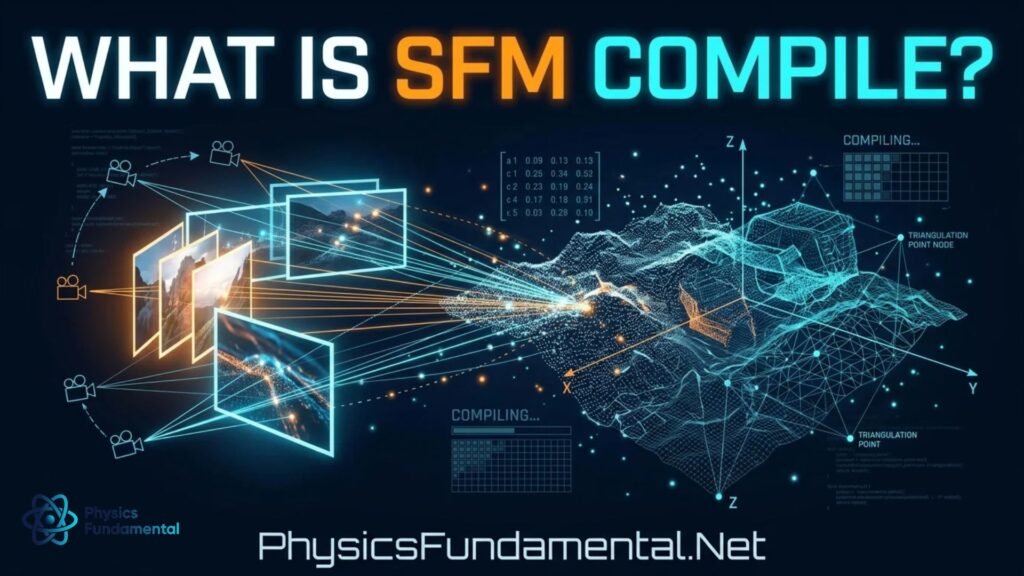
SFM Compile is the process of converting prepared 3D model data into a format that Source Filmmaker and compatible Source-engine applications can read.
A model created in a program such as Blender typically starts as an editable project containing geometry, materials, textures, and possibly a skeleton or animation data. Source Filmmaker uses its own asset formats, so a custom model generally needs to be exported and compiled before it can be used correctly.
Valve’s StudioMDL tool performs model compilation. It reads a QC script and associated source assets, then generates the model files required by the relevant Source-engine environment. The precise inputs and outputs depend on the model and the engine branch being targeted. You can explore the technical details in the Valve Developer Community documentation for StudioMDL.
A typical SFM compile process includes preparing the model, exporting source geometry, organizing textures, defining materials, configuring the QC file, running the compiler, and checking the finished model inside SFM.
Compilation isn’t the same as modeling. It doesn’t automatically fix poorly constructed geometry, incorrect bone weights, or missing textures. Its purpose is to build the prepared asset into a format the target environment can use.
Understanding Source Filmmaker
Source Filmmaker is an animation and filmmaking application developed by Valve. It lets creators produce animated videos, cinematic scenes, character performances, posters, and other visual projects using assets compatible with the Source engine.
Unlike a traditional modeling program, SFM is primarily designed for arranging scenes, controlling cameras, animating characters, positioning props, and rendering finished shots. Creators usually prepare custom models in a separate 3D application before bringing them into SFM.
You can learn more about the software’s background through the Source Filmmaker overview.
The application works with assets such as characters, environments, props, materials, textures, and animation sequences. Many assets from compatible Source-based games are already prepared for use, while custom assets may need additional work.
For example, an existing model available in a compatible SFM installation might load without any new compilation. A character created from scratch in Blender, however, will generally need to be exported through a compatible Source workflow and compiled before it can be used.
Knowing the difference helps you decide whether you actually need to compile a model or simply locate and load an existing asset.
Why Do Models Need to Be Compiled?
A 3D model contains several kinds of information, and the Source engine needs that information in a format it understands.
Depending on the asset, a model may include geometry, UV coordinates, materials, textures, a skeleton, bone weights, animation sequences, and collision information. These elements must be prepared correctly before compilation.
Consider a custom character created in Blender. The mesh may look excellent in Blender’s viewport, but that doesn’t mean Source Filmmaker can read the original project file directly. The model needs to be exported into a supported intermediate format, and its materials and other resources must be configured for the target environment.
Compilation brings these prepared components together according to the instructions in the QC script. The resulting model files provide the data SFM needs to load and display the asset.
A successful compilation doesn’t guarantee that everything will look perfect. Incorrect material paths may still produce missing textures, while faulty bone weights may cause strange deformations. Animation sequences can also fail when their skeletons or references don’t match.
That’s why testing is a separate and essential step. Compilation builds the asset; testing confirms whether it behaves as expected inside the application.
Common SFM Compile File Formats
Understanding the common file formats makes it easier to organize projects and identify problems. Each format has a different purpose, and not every model uses every file listed below.
MDL Files
The .mdl file is the primary compiled model file used by the Source engine. It contains important model information, including references and metadata associated with the model’s structure, materials, and animations.
However, an MDL file isn’t always sufficient on its own. Depending on the model and engine branch, additional files may contain vertex, rendering, animation, or collision data.
If a model doesn’t load correctly, check that its required supporting files are present and located where the application expects them. Copying only the MDL file may not be enough to make a custom asset work.
SMD and DMX Files
SMD and DMX are formats commonly used to exchange model and animation data with Source-engine compilation tools.
An SMD file can contain mesh information, skeleton data, or animation information, depending on how it was created. DMX is another format used by Source tools for model and animation data.
When exporting from Blender, a compatible exporter such as Blender Source Tools can help prepare these files for a Source workflow. Export settings matter: the model’s orientation, scale, materials, armature, and bone weights should be checked before compilation.
These files are generally source inputs rather than the final compiled model that you load into SFM.
VVD, VTX, and PHY Files
These supporting formats perform different jobs in a compiled Source model.
A .vvd file contains vertex data, including information used to reconstruct the model’s geometry and UV mapping. VTX files contain optimized geometry information used for rendering and may have different suffixes depending on the engine version.
A .phy file contains collision-model data when collision information has been defined and generated during compilation. Not every model requires a separate PHY file.
The important point is that these files aren’t interchangeable. A model can fail to load or render properly if required supporting files are missing, incompatible, or placed in the wrong location.
VTF Textures
VTF stands for Valve Texture Format. It is commonly used for textures in Source-engine games and applications.
Textures determine much of a model’s visible appearance, including its colors and surface details. A texture created in a conventional image format may need to be converted to VTF for a traditional Source material workflow.
Conversion alone doesn’t guarantee success. You must also make sure the material references the correct texture and that the required files are in the expected directory.
If your compiled model appears with missing or incorrect textures, check the VTF file and its associated material definition before rebuilding the entire model.
VMT Materials
VMT stands for Valve Material Type. A VMT file defines how the Source engine should display a material, including which texture it uses and which shader settings apply.
For example, the material may reference a diffuse texture and define additional settings for transparency or surface appearance. The exact parameters depend on the shader and the target engine.
A VMT can point to a texture that exists on your computer but is stored in a different directory than the application expects. When this happens, the material may fail to display correctly even though the texture file itself is valid.
Check both the material definition and its texture path when troubleshooting.
QC Files
A QC file is a plain-text script that tells the model compiler how to build an asset.
It can specify the model’s output name, reference geometry, material directory, animation sequences, and collision-model information. Other instructions depend on the type of model and the capabilities of the target engine branch.
A poorly configured QC file may reference a missing SMD, an incorrect folder, or an incompatible command. The compiler output often provides clues about which part needs attention.
Keep your QC file organized and verify its paths before compiling. A few minutes spent checking the instructions can save repeated failed builds.
The Basic SFM Compile Workflow
The exact process varies by asset, but most custom-model projects follow the same general stages.
1. Create or Prepare the Model
Start with a model created or modified in a compatible 3D application. Blender is a common choice, but the important thing is to use an export workflow supported by your Source compilation tools.
Check the mesh, object names, scale, orientation, UV mapping, and material assignments. If the character is rigged, inspect the skeleton and confirm that vertices are weighted to the appropriate bones.
Remove unnecessary objects and make sure the model’s organization is clear. A clean source project is easier to export and troubleshoot than one containing many unused objects and inconsistent names.
2. Prepare the Textures
Organize the textures associated with the model before compilation. Give files descriptive names and keep track of where they will be stored in the final asset structure.
For a typical VTF-based workflow, convert suitable source images to VTF using a compatible texture tool. Check the resulting textures separately to make sure they look correct.
Remember that the texture file and the material definition serve different purposes. Having a valid VTF doesn’t help if the associated VMT points to the wrong location.
3. Create the Material Files
Create the VMT files required by the model’s materials. Each file should define the appropriate shader and reference the intended texture.
Keep material names consistent with the files and directories used by your project. If you rename a texture or move it to another folder, verify that the material still points to the correct location.
Pay particular attention to special materials involving transparency or other nonstandard rendering effects. Their configuration may require more care than a simple opaque surface.
4. Create a QC File
Prepare the QC script with the instructions needed for your model. Depending on the asset, these may define the output model name, reference mesh, material directory, animation sequences, and collision settings.
Make sure every referenced source file exists. Use paths that match the expected layout for the compilation environment rather than assuming that your computer’s folder structure will automatically be recognized.
The required QC commands depend on the target Source branch, so avoid copying a script from a different game or model type without checking compatibility.
5. Run the Model Compiler
Once the source files and QC script are ready, run a compatible version of StudioMDL. Some creators prefer using Crowbar, a community tool that provides a graphical interface for common Source and GoldSource model-modding tasks.
Choose the correct game or project configuration where the tool requires it. Different Source-engine branches can have different compiler requirements, and a tool that works for one project may not be suitable for another.
Read the compiler output rather than focusing only on whether the process appears to finish. If it reports missing files or script errors, fix the underlying issue and run the compilation again.
6. Test the Model in Source Filmmaker
After compilation, load the model into SFM and inspect it in a test scene.
Check whether the model appears, its textures render correctly, its scale is reasonable, and its rigging behaves as expected. If the model includes animations, test those separately instead of assuming they work because the model loaded.
Also check for missing materials, unexpected deformations, and problems that appear only during movement or under different lighting.
A successful build is an important milestone, but the final test is whether the asset behaves correctly in Source Filmmaker.
Common SFM Compile Problems
Compilation problems become easier to solve when you identify the type of failure instead of changing several settings at once.
Missing Textures
Missing textures may appear as a purple-and-black checkerboard or as other incorrect materials, depending on the problem.
Common causes include an incorrect VMT texture reference, missing VTF files, or an unexpected directory structure. Start by checking the material associated with the affected part of the model.
Make sure the material exists, the texture reference is correct, and the necessary files are available in the game’s recognized search paths. Recompiling the geometry won’t fix a broken material path by itself.
Model Compiler Errors
Compiler errors can come from missing source files, incorrect QC commands, invalid references, unsupported settings, or problems in the exported model data.
Read the earliest meaningful error message first. Later messages may be consequences of an earlier failure.
Check the named file or command, confirm that the relevant path exists, and correct one issue at a time. If you use a script copied from another Source-based game, verify that its commands are supported by your compiler.
Incorrect Scale
A model may appear much larger or smaller in SFM than it did in Blender.
This can result from mismatched scene units, export settings, model transforms, or assumptions about the target coordinate system. Check the model’s transforms and scale before exporting, and use a known reference object to compare its size in SFM.
Avoid applying random scale changes in multiple places. Establish where the mismatch originates, correct it there, and export again.
Broken Rigging
A character may load correctly but deform strangely when you move its arms, legs, or other body parts.
Possible causes include incorrect bone weights, mismatched bone names, incompatible skeleton structures, or differences between the reference model and animation sequences.
Inspect the rig in your modeling application before blaming the compiler. Test a few basic movements and verify that the affected vertices are attached to the intended bones.
Missing Animations
Animation problems can occur when a sequence file is missing, its reference is incorrect, or the animation skeleton doesn’t match the compiled model.
Check the animation paths and confirm that the relevant sequences are included in the QC instructions. Verify that the exported animation uses the expected skeleton and that the compiler supports the inputs you’re using.
Testing a single simple animation first can help you isolate the problem before adding more complex sequences.
SFM Compile Tools
Several tools may be useful, but you don’t need every tool for every project.
- StudioMDL: The model compiler used to process QC scripts and supported model source files into Source-engine assets.
- Crowbar: A community tool commonly used for compiling and decompiling Source and GoldSource models through a graphical interface. Check its compatibility with your target environment.
- Blender: A 3D modeling application for creating or preparing custom geometry, materials, and rigs.
- Blender Source Tools: An exporter and importer used in Source-related workflows to exchange model and animation data with formats such as SMD and DMX.
- VTF-compatible texture tools: Utilities for preparing textures and creating the resources needed by a Source material workflow.
- A text editor: Useful for editing QC files, checking paths, and correcting compilation instructions.
Choose tools based on the asset you’re building and the Source-engine branch you’re targeting. Before following a tutorial, check whether it was written for the same kind of model and environment.
You May Like to Read: QuikConsole com: Is It Safe? Honest 2026 Review
SFM Compile vs. SFM Import
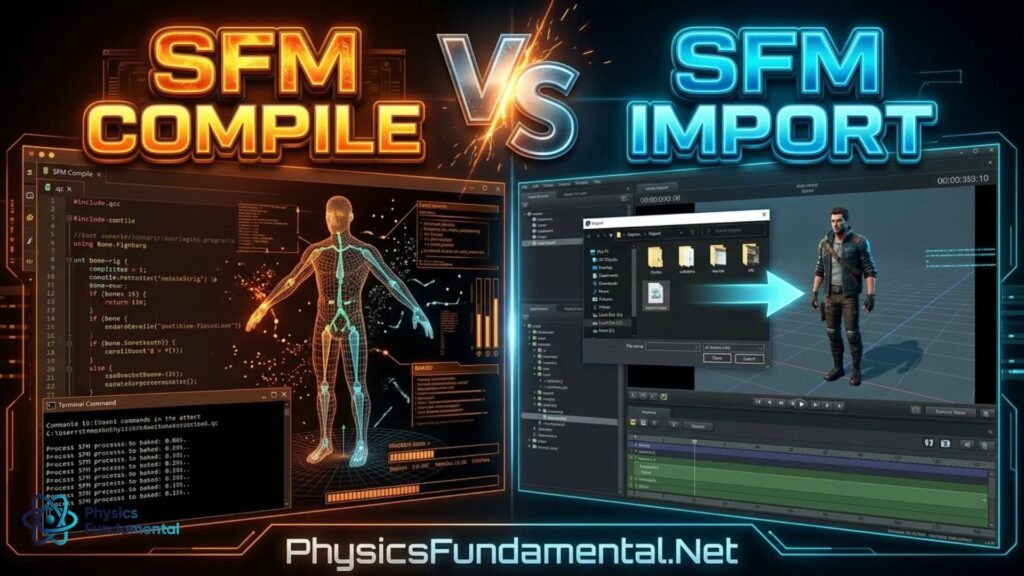
Compilation and importing solve different problems.
Compilation prepares source assets for use in a compatible Source-engine environment. A custom model created in Blender may need to be exported to supported source formats, described in a QC file, and processed by a compatible compiler.
Importing means bringing an asset that is already in a compatible format into Source Filmmaker or making it available through the application’s recognized asset directories.
For example, a model that has already been compiled correctly for a compatible environment may only need to be placed in the appropriate directory and loaded into SFM. It doesn’t necessarily need to be compiled again.
However, an asset from a different Source-engine branch may require conversion or other adjustments before it works properly. Having an MDL extension alone doesn’t guarantee compatibility.
Understanding this distinction helps you diagnose problems more efficiently. If an existing model loads correctly, compilation may not be necessary. If a custom model hasn’t been prepared for the target environment, importing alone won’t solve that problem.
How to Make SFM Compilation Easier
Keep Files Organized
Separate model source files, textures, material definitions, QC scripts, and compiled outputs into a clear project structure. Good organization makes it easier to find missing files and understand what the compiler is using.
Keep backups of working source files so you can return to a known-good version if a later change introduces a problem.
Use Consistent Naming
Use clear and consistent names for models, materials, textures, and animations. Avoid unnecessary renaming after files have been referenced in QC scripts or VMT definitions.
When you do rename a file, update the references that depend on it.
Check Paths Carefully
Incorrect paths are a frequent source of trouble. Verify the paths in the QC script and material files, and confirm that the expected files actually exist.
A texture can be present on your computer yet remain unavailable to SFM if it’s stored outside the directories the application searches.
Test Small Changes
When something breaks, avoid changing the mesh, materials, rig, and QC file all at once.
Make one change, compile or reload as appropriate, and test the result. This makes it easier to identify the real cause and prevents a simple issue from becoming a more complicated one.
Is SFM Compile Difficult for Beginners?
SFM Compile can seem difficult at first because it connects several tools and file formats. Beginners must learn not only how to prepare a model but also how materials, QC scripts, supporting files, and compiler settings work together.
The easiest way to learn is to start with a simple prop or model rather than a complex character with multiple animation sequences and special materials.
Begin by preparing a basic mesh, exporting it into a supported format, creating the required QC instructions, and compiling the result. Then test it in SFM before adding more advanced features.
Once the basic workflow works, move on to textured materials, rigging, animation, and collision data. When an error occurs, read the compiler output and change one thing at a time.
You don’t need to master every Source file format on day one. Understanding the purpose of the main files and knowing how to trace a problem to its source will take you a long way.
Frequently Asked Questions About SFM Compile
What does SFM compile mean?
SFM compile refers to preparing and compiling 3D models and related resources into formats that Source Filmmaker can use. The process commonly involves source model files, a QC script, and a compatible Source model compiler.
Do I need to compile every SFM model?
No. Models that are already compiled and compatible with your SFM environment can generally be used without compiling them again. Custom models or assets from incompatible environments may require preparation, conversion, or compilation.
Can Blender be used for SFM models?
Yes. Blender can be used to create and prepare models for SFM. A compatible Source export workflow is needed to produce the model and animation data required for compilation.
Why is my SFM model missing textures?
Common causes include incorrect VMT references, missing VTF files, or material paths that don’t match the asset directory structure. Check the material definitions and texture locations before recompiling the entire model.
What is a QC file?
A QC file is a script that tells a Source model compiler how to build a model. It can specify the model’s output name, source geometry, material directory, animation sequences, and other settings required for that asset.
Why does my compiled model look wrong?
Possible causes include incorrect scale, missing textures, broken bone weights, mismatched animation data, or compatibility problems. Check the compiler output first, then test the model’s materials, geometry, rigging, and animations separately.
Conclusion
SFM Compile is an important part of creating custom assets for Source Filmmaker. It connects your modeling work with the file formats and resources that the Source engine can use.
The key is to follow a consistent workflow: prepare the model, export the necessary source files, organize textures, configure materials, create the QC script, run a compatible compiler, and test the result inside SFM.
When problems arise, focus on the specific failure rather than rebuilding everything. A missing texture may be a material-path issue, while strange character movement may point to rigging or animation problems.
With organized files, compatible tools, and careful testing, SFM compilation becomes easier to understand and troubleshoot. Start with a simple asset, learn how the main file formats work together, and build toward more complex models and cinematic projects as your skills improve.